I'd Love To Hear From You

contact ME

After you confirm

After confirming your Master Course, you will receive a brief email outlining the next steps, along with the NDA.

You will be invited to suggest a preferred day and time for your sessions. If your initial choice is not available, we will arrange a suitable alternative together.

Sessions may be scheduled weekly or every two weeks, depending on your preference and pace.

Once confirmed, you will receive your Zoom link and session schedule.

Each session is recorded and made available to you afterward.

Preparing for your sessions

Set your camera to capture your face and hands at a table with a close-up pad.

Pasteboard Devices — deck of cards
Coin Menagerie — cards and coins (four half dollars)
Both — all materials

We will refine your setup during the first session.

Check your time

Las Vegas Time Reference
Las Vegas: 8:00 AM – 6:00 PM
Your time: Loading…
Use this as a quick reference when arranging a Zoom session.

Closest hotel

Home2 Suites by Hilton Las Vegas I-215 Curve.
8470 W. Sunset Road, Las Vegas, Nevada, 89113, USA.
Website: Link

This is the closest hotel to my apartments (Evo, 8760 W Patrick Ln, Las Vegas, NV 89148) and the most convenient option for those attending a Master Course.

Rates typically begin around $150 per night, depending on season and availability.

The distance is short, though the walk may take 20–30 minutes. In milder weather it is manageable; during hotter months, a brief rideshare is recommended.

Hotel → EVO: View on Google Maps
Hotel → Mothership Coffee: View on Google Maps

If you’re staying at this hotel, we meet at Mothership Coffee in the morning. From there, we go to my apartment where the session takes place. Afterward, I’ll return you to the hotel.

Rideshare services such as Uber or Lyft are readily available.

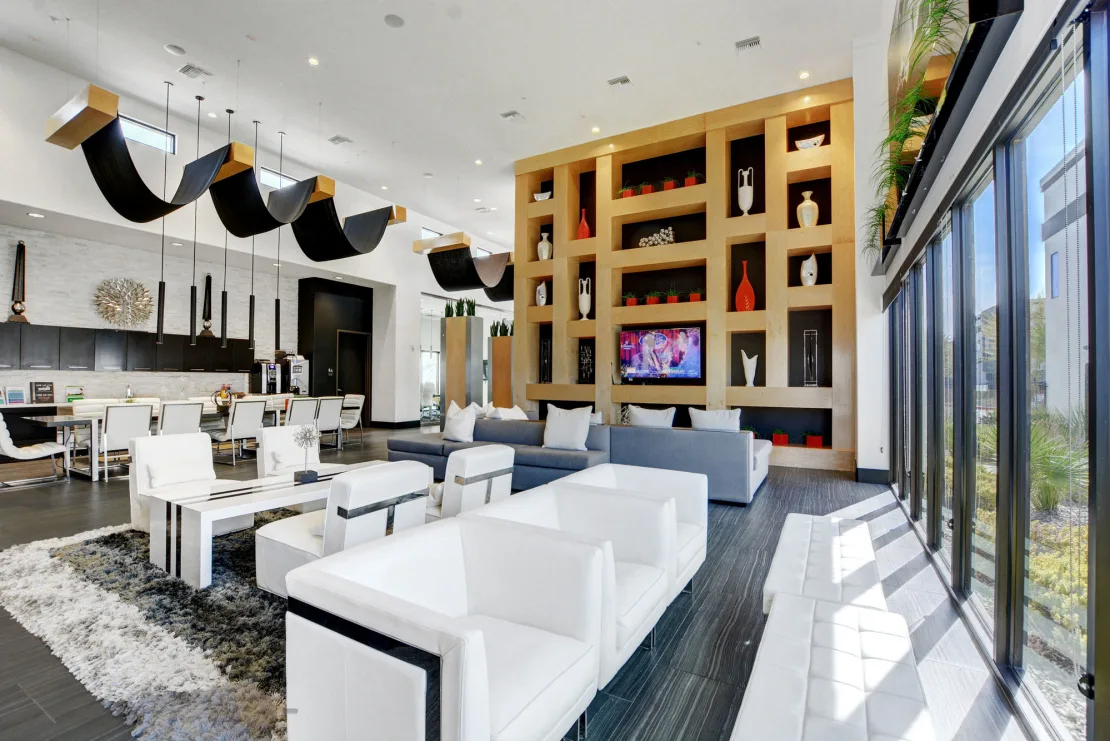
EVO Apartments

we meet here, then go to my apartment

MEMBER NOTES — QUICK TIPS

What this is: a private notes pad for this page. Your notes are end-to-end encrypted in your browser and can be synced so you can pick them up later.

How to use

  1. Type → Save & Lock → Safe. Locking encrypts and saves your notes.
  2. Unlock to edit. You’ll enter your passphrase to decrypt.

Sync states

  • Synced: encrypted copy on server (still private).
  • Local: only on this device until you Save & Lock with Sync on.
  • Locked: read-only until you enter your passphrase.
  • Unlocked: editable; remember to Save & Lock when done.

Passphrase tips

  • Use a short phrase you’ll remember (about 4–5 words).
  • We never store your passphrase. If you forget it, we can’t unlock your notes.

Restore notes (when the box looks empty)

  1. Shows “Unlock”? Click Unlock and enter your passphrase.
  2. Banner: “We found synced notes for this page…” → enter your passphrase to Sync & Retrieve, then Unlock.
  3. No message? Close the Member Notes box (click the badge), then open it again; enter your passphrase if prompted.
  4. Full step-by-step ↗

Export

  • Export as Markdown / Plain TXT (when unlocked). On desktop: under MoreExport. On mobile: tap the Export button.
  • Save as PDF… uses your browser’s print dialog.

Common questions

  • Blurred notes? They’re locked. Click Unlock.
  • Synced but empty? Click Unlock to reveal synced notes.
  • Can you read my notes? No—end-to-end encrypted.

Troubleshooting

  • Forgot passphrase: cannot decrypt. Use Reset to start fresh.
  • Cleared history: with Sync on, reopen the box and Unlock to pull the synced copy.
  • Unlock fails: re-enter carefully; ensure Sync state is correct; refresh and try again.

Finding the Notes Shelf

  • Where it lives: A rounded Member Notes button sits at the bottom-center of the page.
  • When it appears: It becomes visible after the page finishes loading and you scroll a little. If you don’t see it, try a small scroll.
  • Open / close: Click or tap the Member Notes button to open the editor; click the button again (or the “×” inside the box) to close.
  • Keyboard access: Press Tab until the Member Notes button is focused, then press Enter or Space.
  • If it blends with the page: Watch the bottom edge—on first visits the button may show a subtle ring. You can also briefly scroll down/up to reveal it.
  • Mobile: Scroll slightly and look at the bottom-center; tap the Member Notes button to open/close.
  • During full-page print: The shelf hides automatically so it won’t appear in your PDF printout.

Shortcuts

  • Export dialog: Ctrl/⌘ + Shift + E
  • Undo / Redo: Ctrl/⌘ + Z / Ctrl/⌘ + Shift + Z
  • Export Markdown test: Ctrl/⌘ + Shift + M
  • Export TXT test: Ctrl/⌘ + Shift + T
  • Lock/Unlock test: Ctrl/⌘ + Shift + L
  • Sync test: Ctrl/⌘ + Shift + S

Privacy & safety

  • End-to-end encrypted with your passphrase.
  • Your passphrase is never sent to or stored on our servers.