Works related
How do I get my monthly feature?
Compositions are announced monthly on your Start page and via email notification, then automatically added to your Library. You can log in and navigate to your Works from the Library. Or purchase more.
As of November 16, 2023: Monthly works are automatically posted and become accessible. You may find them collected in the Library.
What about before I joined?
Access begins the moment you join and remains available while your membership is active, not before. From that point on, you receive work on a monthly basis. For example, if you joined in March, you would receive work for March, April, May, and so on, but not before. However, you may complete your Library by purchasing any works from the time before you joined. After purchase and within your Library, the work becomes accessible indefinitely, so long as your membership is active.
Do you save my work for me?
Yes. Every work you receive during an active membership period is remembered in your Library. If you stop your membership, access pauses, but the Library keeps a record of those works for you. If you return later, simply reactivate your account and those works will become available again, just as you left them. You may also download saved PDFs from your account.
What if I purchased twice?
Can I download videos?
Videos are normally provided for streaming.
Members enrolled in the Yearly Membership Plan who need offline copies for study, travel, or limited internet access may submit a Download Request.
Each request is reviewed personally. Approved members receive access to downloadable videos associated with the Works they already own.
Downloads are intended for personal study and offline viewing only. Please do not redistribute or host them elsewhere.
About mobile devices (iPad / iPhone):
Even when a download link is provided, iOS devices may stream a video instead of saving it as a file. This behavior is controlled by Apple and may vary depending on the browser and device.
Some members are able to save files on mobile devices; however, this is not consistent and is not something we can support.
In recent years, too much valuable work has been separated from its context and redistributed without permission. While this has not happened here, experience suggests that every creator eventually faces the same challenge.
For this reason, video downloads are not automatically provided. Access is available to Yearly Members who make a request and receive approval.
The request process is not merely a security measure. It preserves a sense of connection between creator and member, and helps ensure that what is shared retains the respect, context, and care with which it was created.
As of November 8, 2025, The Hungry Imagination shifted from downloadable videos to streaming access — a change made to protect the integrity of the work and the experience we share here.
Can I store and download PDFs?
Yes. Find the Complimentary PDF button at the top of each monthly Work and click it. Once you’ve done this, the PDF will be stored in your Account Downloads indefinitely. Even if your membership ends, you can still log in to download your saved PDFs at any time — just be sure to click the Complimentary PDF while your membership is active. Tip: Always save it!
Each PDF contains active links that allow you to stream videos directly on The Hungry Imagination. These links remain valid for as long as The Hungry Imagination exists.
This way, you can enjoy your Works securely — whether streamed online or saved as a PDF — knowing they’ll always be accessible to you.
If you require an offline copy for study or travel, you may submit a request through the Download Request Form.
Account related
How do I cancel, pause, or restart my subscription?
Log in to your account
✅ Toggle Auto-Renew Off
Not ready to leave but want a break? Turn Auto-Renew OFF. You’ll keep access through your current billing period, and your subscription will simply expire after that. You can return anytime — nothing is lost.
❌ Cancel Subscription
Thinking of stepping away? You’ll still have access through your paid period. If you return later, everything you unlocked during your membership will be waiting for you.
Why can’t I sign in?
Enable 3rd Party Cookies.
Check your browser’s security settings. Our membership software won’t work if you’ve turned off 3rd-party cookies. Either change your settings or use another browser.
Can I switch plans?
Yes. Click Change plan from the Subscriptions menu item in your Account. You’ll be immediately switched to the new plan and charged a prorated amount.
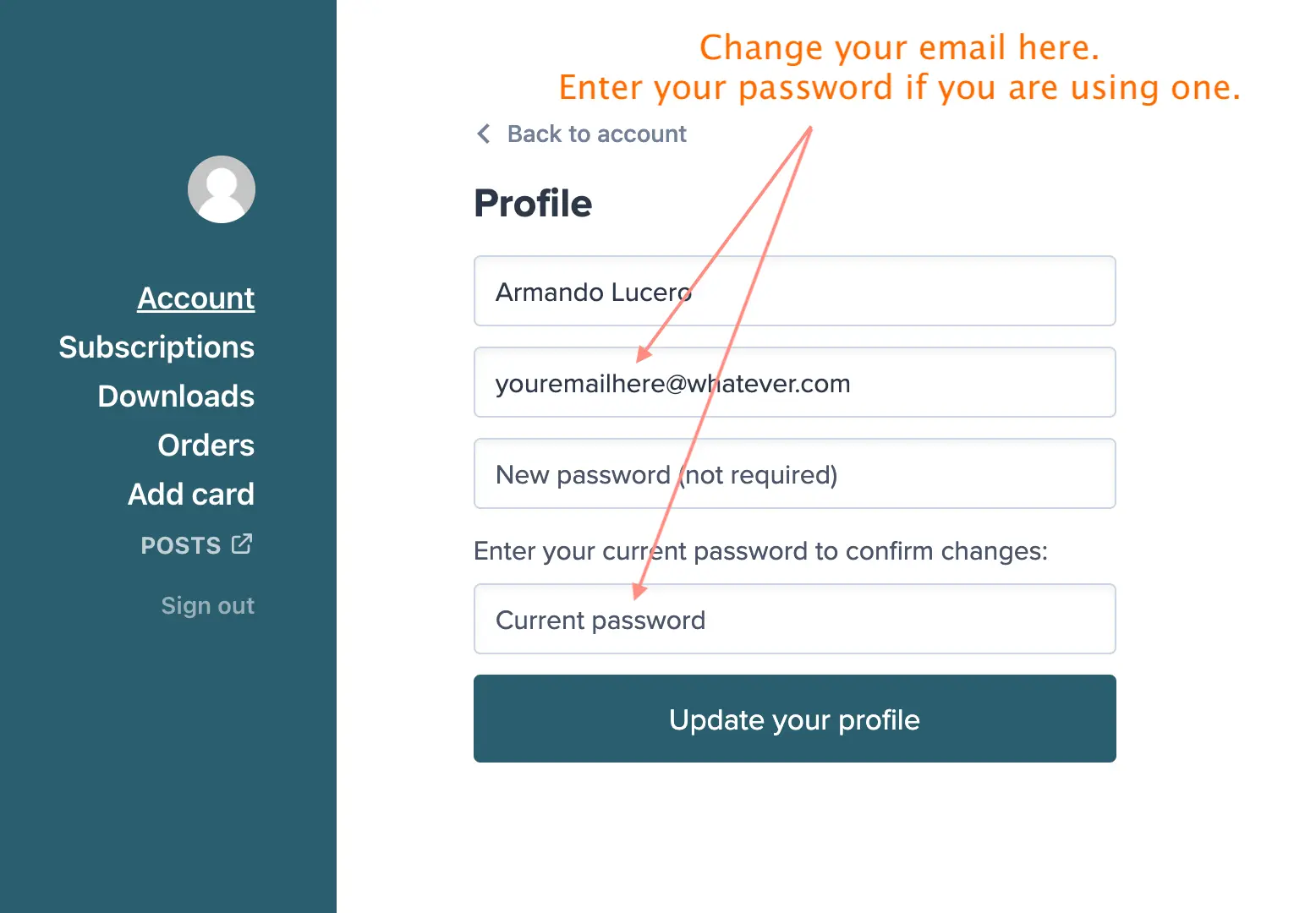
Can I update my email address?
Yes. Log in to your Account to make these changes. Find your name, email, and password, then click to see your Profile.
Can I update my credit card?
Yes. Log in to your Account, and click Add card to update.
How do I reset my password?
No password is required. Instead, to sign in, enter your email address and click the “Send sign-in link” located just below the password box. You then get an email with a link you click to sign in. The link can only be used once and expires after 24 hours.
If you prefer to create a password, you can do so after signing up for a membership. If you need to reset your password, click this link, enter your email address, and click ‘Send me reset instructions’.
Edge Cases
What if signing in still doesn’t work?
This is uncommon, but easy to fix.
The issue may be related to your connection.
If you use a VPN, try switching to a different location and sign in again, as some VPN connections may be blocked.
If needed, you can also sign in directly:
https://thehungryimagination.memberful.com/auth/sign_in
Once signed in, click “The Hungry Imagination” in the top menu to return to the homepage.
Some websites block certain connections as part of their security systems.
This can include VPN traffic, shared IP addresses, or activity that appears unusual. In these cases, access may be temporarily limited to prevent automated or suspicious behavior.
In other words, this is not an error, but a protective measure that can occasionally affect real users.
Switching to a different connection or location usually resolves it immediately.
An expression of Shibumi →
Shibumi, at least for me: doing what I want when I want without those burdensome tension thoughts pulling me down. Just hanging in that sweet spot of precarious balance between too much and too little—an intersection of blissful fluctuation while sitting with cards, coins, and coffee.
— Armando Lucero
On Shibumi →
The term shibumi is Japanese and is explored at length in the novel Shibumi by Trevanian. You can read more about the book here: ABOUT Shibumi (Wikipedia)
The short reflection above is my own adaptation, inspired by Trevanian’s use of the word and the sensibility he describes. What follows is an excerpt from the novel, quoted here to preserve the original context and language:
“He sounds as though I shall like him, sir.”
“I am sure you will. He is a man who has all my respect. He possesses a quality of . . . how to express it? . . . of shibumi.”
“Shibumi, sir?” Nicholai knew the word, but only as it applied to gardens or architecture, where it connoted an understated beauty. “How are you using the term, sir?”
“Oh, vaguely. And incorrectly, I suspect. A blundering attempt to describe an ineffable quality. As you know, shibumi has to do with great refinement underlying commonplace appearances. It is a statement so correct that it does not have to be bold, so poignant it does not have to be pretty, so true it does not have to be real. Shibumi is understanding, rather than knowledge. Eloquent silence. In demeanor, it is modesty without pudency. In art, where the spirit of shibumi takes the form of sabi, it is elegant simplicity, articulate brevity. In philosophy, where shibumi emerges as wabi, it is spiritual tranquility that is not passive; it is being without the angst of becoming. And in the personality of a man, it is . . . how does one say it? Authority without domination? Something like that.”
Nicholai’s imagination was galvanized by the concept of shibumi. No other ideal had ever touched him so.
“How does one achieve this shibumi, sir?”
“One does not achieve it, one . . . discovers it. And only a few men of infinite refinement ever do that. Men like my friend Otake-san.”
“Meaning that one must learn a great deal to arrive at shibumi?”
“Meaning, rather, that one must pass through knowledge and arrive at simplicity.”